
IPTV with Subtitles & Multiple Audio Languages: Buying Guide
For IPTV with subtitles or multiple audio languages, check the exact programme on your own player before subscribing. The app's menu language, a live channel's spoken language and a film's selectable audio tracks are three different things. A service advertising international channels may still lack the particular subtitles your household needs.
Commercial disclosure: Some services linked here are operated by or commercially connected with our publishing group. This guide explains buyer checks; it does not claim we tested a provider's language catalogue.
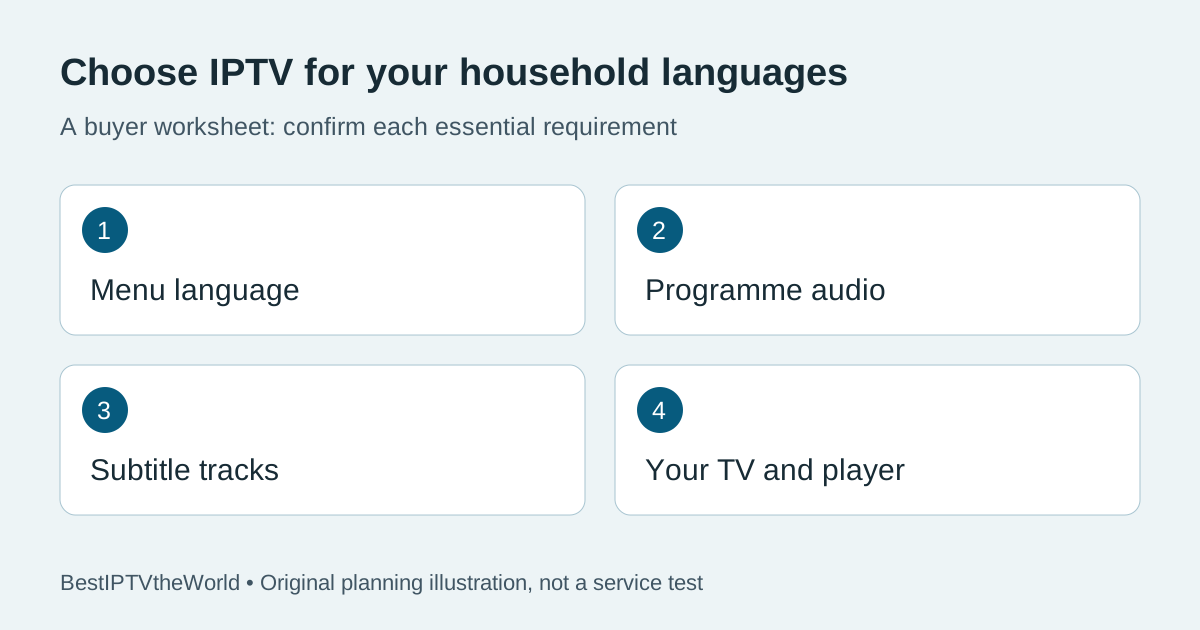
Separate the three language choices before comparing plans
Start by naming the result you want. “Spanish IPTV” could mean Spanish-speaking live channels, Spanish audio for an English-language film or Spanish subtitles while keeping the original soundtrack. Those requests can lead to different answers. Put your must-have programmes beside the required language and feature instead of asking only whether a package is “international.”
| Language choice | What it changes | What it does not prove |
|---|---|---|
| App interface | Menus, buttons and settings | Availability of translated programme audio |
| Programme audio | The soundtrack you hear, if alternatives exist | That matching subtitles are also supplied |
| Subtitles or captions | Text shown alongside the programme | That every episode, channel or live event includes it |
| Channel grouping | How a player organises a list | The actual language of every broadcast in the group |
Live channels and on-demand titles need different checks
For a live channel, check the broadcast you intend to watch and ask whether an alternative audio track is supplied. A channel name or country category is not enough. A channel may show programmes in more than one language, and an event may have a different feed from the one you expected. Note the channel label and the date of your check.
For films or series, check the title and episode itself. Open its audio and subtitle menus through the supported player. If the language is listed, select it and confirm playback changes as intended. A single film with the right options is useful for that film, not evidence that a whole library has the same options.
Test subtitles on the television you will use
A subtitle track must be supplied and supported by the playback setup. A player can expose controls without the selected programme providing a usable track. Test the TV or streaming device, app and account together. Confirm that text displays correctly, stays readable and can be switched on or off when the track permits it.
On Google TV, Google's language-settings guidance distinguishes audio and subtitle options and tells subscription viewers to check with the service provider. Its steps for Google purchases are not a universal set of instructions for every IPTV app. Use the supported player's own menu and help material for your device.
If readability matters, try the available size, contrast or caption settings. Do not assume device-wide caption preferences will be honoured identically by all apps. If text is permanently embedded in the video, a normal subtitle toggle may not remove it. Ask whether there is a suitable alternative before paying.
Build a short language worksheet for the household
Choose a few representative examples rather than trying to inspect every item in a catalogue. Include one live programme and one on-demand title if your household uses both. Ask other viewers what they actually need: original audio with subtitles can be a different requirement from a dubbed soundtrack.
| Requirement | Your note | Confirmation to seek |
|---|---|---|
| Content | Exact channel, film or episode | Included in the selected plan and relevant territory |
| Audio | Preferred spoken language or original soundtrack | Track available for that programme |
| Text | Preferred subtitle or caption language | Track supplied and usable in the chosen app |
| Device | TV model or streaming device and app | Supported playback and remote controls |
| Household | Viewers watching different programmes together | Sufficient simultaneous streams and permitted locations |
This worksheet records questions, not test results. Leave a field marked “unconfirmed” if it has not been answered. An unconfirmed essential requirement is a reason to pause the purchase rather than fill the gap with an assumption.
Ask support a question they can answer precisely
“On [device and player], I need [channel/title/episode] with [audio language] and [subtitle language]. Is this included in [plan] for viewing in [country]? Can I check that exact setup during the available trial?”
Keep the response with the offer and date. If a salesperson replies only with a large channel count, ask again about the specified content. Confirm any separate player charge and whether a trial has different access from the paid product. Do not send account passwords or payment credentials as part of a general availability question.
Choose a subscription after the language checks
Once the essential content works as required, compare the plan's payment term and simultaneous-stream allowance. A more expensive package is useful only if its additional features meet a confirmed need. Do not pay for extra connections simply because several devices have the app installed. Ask whether independent viewing at the same time is permitted.
Use the service-comparison questions for the broader buying decision and the trial planning guide to organise the check. Our USA subscription guide and Canada buyer checklist cover regional questions; neither establishes that a named programme has the language or rights you require.
If you are considering TereaTV, ask about your exact content and language requirements before ordering. You can check the current trial request or, after confirming suitability, review the monthly checkout. Current availability, eligibility, price and terms must be checked there; these links are commercial placements.
What to keep after making your choice
Save the selected product, order reference and any written answer about the essential language features. Content availability can change. If something later differs, identify the programme, device, app and time when contacting support. A clear record makes the discussion more useful than a claim that “all subtitles stopped” without an example.
If you plan to watch away from home, also read the travel and account-location checklist. Language availability does not grant permission to use an account in every country or location. Confirm those conditions separately instead of using a workaround to bypass them.
IPTV language and subtitle questions
Does changing the app language translate every channel?
No. The interface language changes menus. Programme audio and subtitle availability depend on the supplied content and supported playback setup.
Does every IPTV film have multiple audio languages?
No universal catalogue claim can establish that. Check the exact title or episode and confirm the available tracks before buying for that requirement.
Why is a subtitle option visible when no text appears?
The selected programme may not supply a usable track, or the setup may not support it. Check another known track and ask the provider about the specific content and player.
Can a trial prove all future subtitles will work?
No. It helps you check the sampled content on that setup at that time. Ask which paid-plan features differ and keep important requirements in writing.